 Readhill
Transfer guide · 2 min read
How to transfer PDFs from a computer to iPad over Wi‑Fi
No cable, cloud or email needed. Drag and drop PDFs from a browser on a computer on the same Wi‑Fi.
Step by step
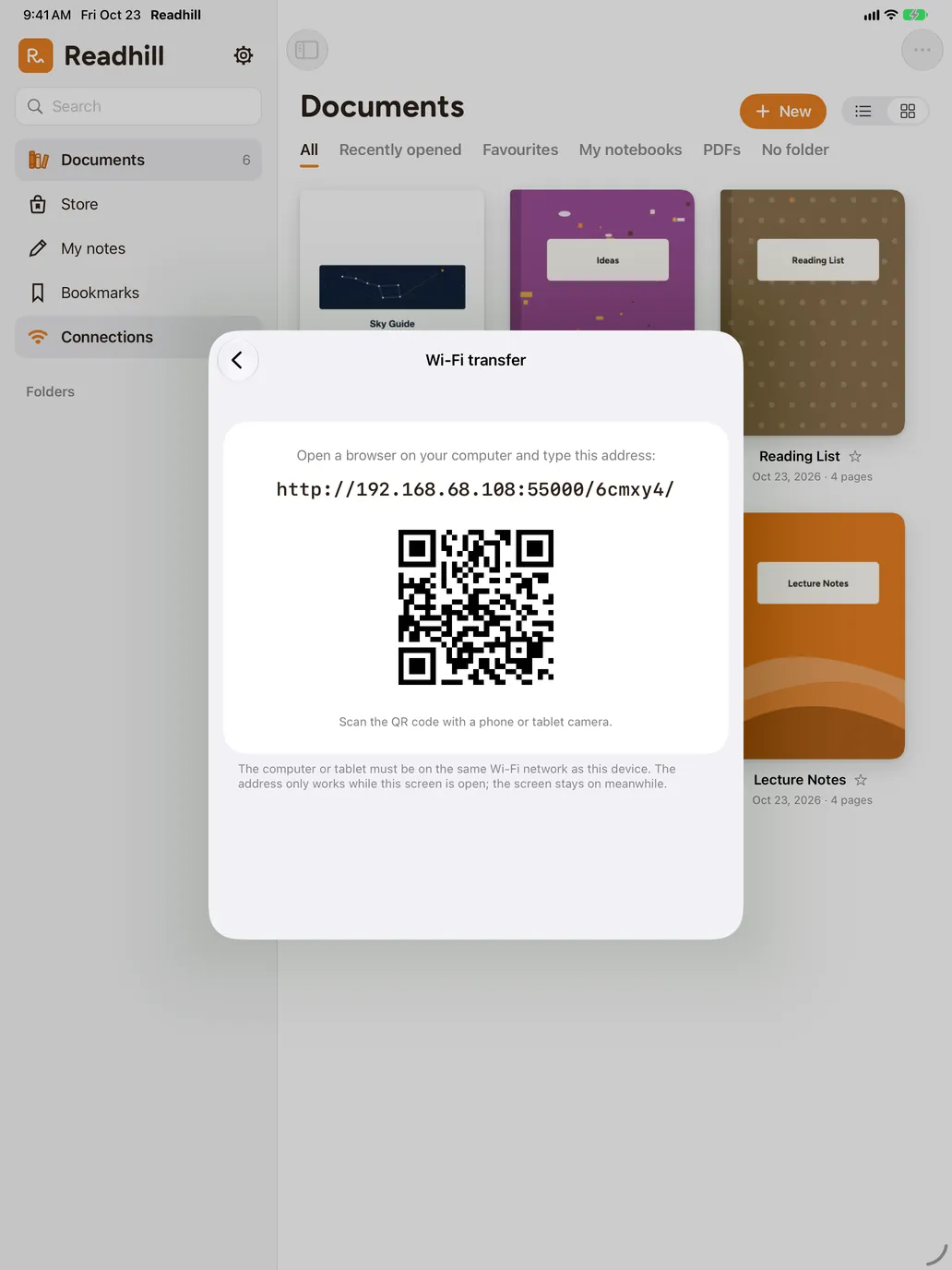
Open Wi‑Fi transfer
In Readhill, tap Connections › Wi‑Fi transfer.
Type the address on your computer
Type the address shown on screen into your computer's browser or scan the QR code.
Drag in the PDFs
Drag files onto the page. They appear in your library as they arrive.
Keep the screen on
Keep Readhill open until the transfer finishes.
Tips
- Both devices must be on the same Wi‑Fi network.
- On guest networks, devices may not see each other.